
How to Optimize Images for SEO
Faster load times, better rankings, and more traffic from image search — here’s exactly how to get your images working for you instead of against you.
Images are usually the heaviest files on any webpage — and heavy files mean slower load times, which Google factors directly into rankings through Core Web Vitals. On top of that, an unoptimized image is a missed opportunity: no alt text means no accessibility value and no shot at ranking in Google Images, a channel that quietly drives real traffic for product pages, recipes, tutorials, and visual content of every kind. Learning how to optimize images for SEO is one of those rare technical fixes that improves speed, accessibility, and search visibility all at once.

To optimize images for SEO: compress every file before uploading, use modern formats like WebP or AVIF, write descriptive alt text for every image, name files with relevant keywords instead of “IMG_2031.jpg,” set explicit width and height to prevent layout shift, and lazy-load offscreen images. Together, these changes reduce page weight and give search engines the context needed to understand and rank your images.
Why Image Optimization Affects Rankings
Search engines can’t “see” an image the way a human does. They rely on surrounding signals — file names, alt text, captions, surrounding page content, and structured data — to understand what an image depicts and how relevant it is to a search query. Skip these signals, and even a stunning, perfectly relevant image contributes nothing to your rankings.
There’s also a performance dimension. According to Google’s own documentation on image best practices, well-optimized images that load quickly and are placed in relevant, well-labeled contexts are far more likely to surface in both standard search results and Google Images — and large, unoptimized image files are a common cause of poor Core Web Vitals scores, which are a confirmed part of Google’s ranking systems.
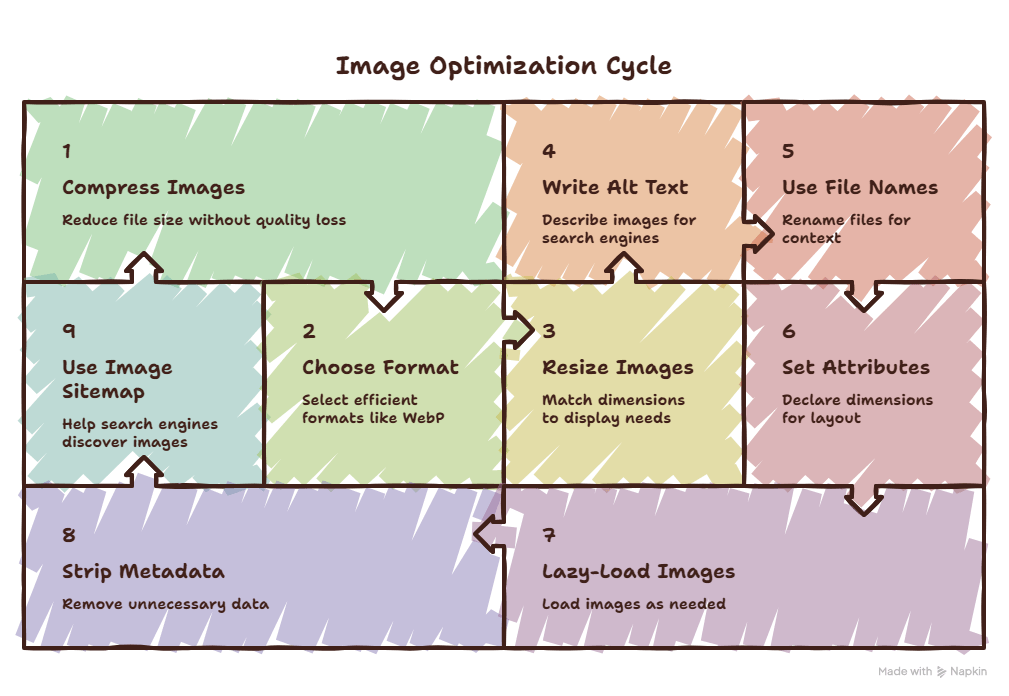
How to Optimize Images for SEO — Step by Step
Compress Every Image Before Uploading
Large, uncompressed files are the single biggest drag on page speed. Run every image through an image compressor before it ever touches your site — a well-compressed JPEG or PNG can shrink by 60–80% with no visible quality loss.
Choose the Right Format
WebP typically produces smaller files than JPEG or PNG at equivalent quality, and is now supported by all major browsers. Convert older image libraries using a WebP converter rather than re-exporting from scratch.
Resize to the Actual Display Dimensions
Uploading a 4000px-wide photo to display at 800px wastes bandwidth on pixels nobody sees. Use an image resizer to match the dimensions your layout actually needs.
Write Descriptive, Specific Alt Text
Alt text should describe what’s actually in the image, in plain language — not a keyword dump. “Golden retriever puppy playing in autumn leaves” tells search engines and screen readers far more than “dog image seo.”
Use Descriptive File Names
Rename files before uploading — “red-leather-office-chair.jpg” gives search engines real context, while “IMG_20260714_0091.jpg” gives them nothing at all to work with.
Set Explicit Width and Height Attributes
Declaring dimensions in your HTML lets the browser reserve space before the image loads, preventing layout shift — a direct component of the Cumulative Layout Shift metric in Core Web Vitals.
Lazy-Load Offscreen Images
Add loading="lazy" to images below the fold so the browser only loads them as the user scrolls near them, speeding up initial page load significantly on image-heavy pages.
Strip Unnecessary Metadata
Photos straight from a camera or phone often carry EXIF metadata — GPS coordinates, device info, timestamps — that adds file size and can leak privacy details. Remove it with an EXIF remover before publishing.
Use an Image Sitemap for Large Galleries
If your site relies heavily on visual content — photography portfolios, ecommerce catalogs — an image sitemap helps Google discover images that might not otherwise be crawled through standard page links.
Choosing the Right Image Format
Not every image should use the same format. Here’s a quick reference for matching format to use case:
Good vs Bad Image Optimization
Alt Text
“image1” or “SEO tips SEO tips best SEO tips 2026 SEO”
“Bar chart comparing organic traffic before and after image compression”
File Naming
“DSC04521_final_v2_edited.jpg”
“womens-running-shoes-blue.jpg”
Common Image SEO Mistakes
Audit Your Alt Text Site-Wide
Run your existing pages through an image alt tag checker to quickly find images that are missing alt text or relying on generic filler descriptions — a common gap on older content.
Frequently Asked Questions
Does image optimization actually affect Google rankings?
What’s the ideal image file size for a webpage?
Is alt text the same as a caption?
Should I use WebP for every image on my site?
Does lazy loading hurt SEO?
loading="lazy" attribute. Google can render lazy-loaded images properly, and the resulting speed improvement generally benefits SEO more than it costs.Do I need an image sitemap?
Final Thoughts
Image optimization sits at a rare intersection in SEO — it improves page speed, accessibility, and search visibility all through the same set of fixes. Compress before you upload, choose formats that match the job, write alt text that actually describes what’s in the frame, and name your files like they matter, because they do. None of this requires advanced technical skill — just a five-minute habit applied consistently across every image you publish.