
Image Compressor in KB
Compress your images to your exact target size in KB locally in your browser. Fast, secure, and 100% private.
Upload your image to compress
Drag and drop your image here, or browse local files. Supports PNG, JPEG, JPG, WEBP, GIF, and BMP formats up to 50MB.
Compressing Image...
Optimizing visual buffers and calculating target KB bounds.
Image Compressor in KB — Compress to an Exact File Size Instantly
You compress an image, download it, check the file size, find it is still too large, go back, compress again, repeat. Standard compressors give you a vague quality slider and leave you guessing the output size.
This Image Compressor in KB eliminates that cycle entirely. Type the exact KB value you need and the tool delivers a compressed image that hits that target with up to 99% accuracy — no guesswork, no repeated trial and error.
Everything runs locally inside your browser. Your images never leave your device.
This free tool is part of the Onlinetoolix suite of image and developer tools. No account required, no server uploads, no cost.
What Is an Image Compressor in KB?
An Image Compressor in KB is a free online tool that lets you compress any image to an exact target file size — specified in kilobytes — directly inside your browser. Unlike standard image compressors that give you a vague quality slider and leave you guessing the output size, this tool lets you type the exact KB value you need and automatically delivers a compressed image that hits that target with up to 99% accuracy.
Whether you need to compress image to 100KB for a government form upload, compress image to 200KB for a job application portal, or reduce photo size in KB for a website that enforces strict file size limits — this tool handles every scenario instantly, privately, and completely free.
No software installation. No account creation. No file uploads to external servers. Everything runs locally inside your browser, which means your images never leave your device.
Quick Definition: An Image Compressor in KB uses a binary search bisection algorithm to automatically find the optimal combination of quality and resolution scaling needed to produce an output file as close as possible to your specified KB target — without exceeding it.
Why Exact KB Compression Matters
Most online image compressors give you percentage-based quality reduction or preset compression levels — low, medium, high. The problem is that none of these tell you the exact output file size in advance. You compress, download, check the file size, find it is still too large, go back, compress again, and repeat the cycle.
This Image Compressor in KB eliminates that cycle entirely. You set the target size. The tool hits it. Done.
This matters in dozens of real-world situations:
Government and visa forms — Many official portals require profile photos compressed to exactly 10KB, 15KB, 20KB, or 30KB with no flexibility.
Job application portals — HR systems often cap resume photos at 25KB, 40KB, or 50KB.
Educational institutions — Online admission forms frequently require documents and photos at 50KB, 75KB, or 100KB limits.
E-commerce platforms — Product images often need to stay under 150KB, 200KB, or 250KB for fast page loading.
Social media uploads — Platform-specific size requirements vary widely across Instagram, LinkedIn, and Twitter.
Email attachments — Keeping images under 300KB or 400KB prevents delivery failures.
Web performance optimization — Developers need precise control over image weight to maintain Core Web Vitals scores.
How This Image Compressor in KB Works
The compression engine behind this tool is more sophisticated than a standard quality slider. It uses an advanced binary search bisection algorithm that automatically finds the optimal combination of quality parameter and image resolution scaling to achieve your target KB size as accurately as possible.
Here is what happens when you upload an image:
Drag and drop your file onto the upload area or click to browse. Supported formats include JPEG, JPG, PNG, WEBP, GIF, and BMP up to 50MB.
Type any KB value into the target size input field. Whether you want to compress image to 10KB, compress image to 200KB, or compress image to 1MB — the engine handles the full range.
Select Target KB Size for exact output control, or switch to Manual Quality mode if you prefer direct control over the compression percentage.
Choose from JPG, JPEG, WEBP, or PNG. The tool recommends the best format based on your input file type — PNG inputs are automatically recommended to convert to JPG for maximum size reduction.
The compressed output appears as a live side-by-side preview alongside the original. Click Download to save your optimized file with a filename that includes the actual compressed size in KB.
Need to resize dimensions instead of file size? Use the Image Resizer Tool to set exact pixel width and height before or after compression.
Two Compression Modes Explained
This is the primary mode and the core feature that sets this tool apart from every generic image compressor online. Enter your exact target in KB and the bisection engine runs multiple compression iterations — testing quality values and scale dimensions — until it finds the configuration that produces a file closest to your target without exceeding it.
For users who prefer the traditional approach, the manual quality slider lets you set compression quality from 5% to 100% and see the output size and preview update in real time. Useful when you need a specific visual quality level rather than a specific file size.
For JPEG and WEBP formats, the engine first tries quality reduction at full resolution. If the minimum quality at full resolution still exceeds your target, it then scales the image dimensions down while maintaining the original aspect ratio, followed by a micro-tuning pass to maximize quality within the size constraint.
For PNG, which uses lossless compression, the engine applies direct resolution scaling bisection to hit the target size.
Supported Compression Targets — Every Common Use Case Covered
This tool handles every KB target you will encounter in real-world usage:
Small file requirements
Compress image to 10KB for Aadhaar or passport photo uploads, compress image to 15KB for government identity verification forms, compress image to 20KB for university admission portals, compress image to 25KB for competitive exam registrations, and compress image to 30KB for official document submissions.
Medium file requirements
Compress image to 40KB for job application photos, compress image to 60KB for corporate HR systems, compress image to 75KB for institutional registration forms, compress image to 80KB for e-commerce thumbnail images, compress image to 100KB for standard web image optimization, and compress image to 150KB for blog post featured images.
Larger file requirements
Compress image to 200KB for high-resolution web images, compress image to 250KB for product catalog images, compress image to 300KB for email-safe attachments, compress image to 400KB for print-ready digital assets, and compress image to 1MB for high-quality web publishing.
The tool also fully supports format-specific compression workflows. Compress JPEG to 20KB, compress JPEG to 50KB, compress JPEG to 100KB, and compress JPEG to 200KB for photography and editorial use cases. Compress PNG to 20KB, compress PNG to 50KB, compress PNG to 100KB, and compress PNG to 200KB for graphics, logos, and transparent image assets. Compress WebP to 50KB and compress WebP to 100KB for modern web performance optimization where WebP is the preferred format.
For photo-specific workflows — compress photo to 50KB and compress photo to 100KB for social media uploads, and compress picture to 200KB for digital album sharing and email distribution.
Need a different output format entirely? Use the Image to WebP Converter to switch formats before applying KB-precise compression.
Key Features of This Image Compressor in KB
The binary search bisection engine delivers up to 99% accuracy against your specified target. This is not an approximation — the tool actively iterates until it finds the closest possible match to your input KB value.
See your original image and compressed output displayed side by side in real time. No need to download to check the result — the visual difference is immediately visible in the comparison panel.
After compression, the tool displays your compressed file size in KB, the percentage reduction achieved, and the optimized output dimensions — giving you complete transparency about what the compression did to your image.
Export as JPG, JPEG, WEBP, or PNG depending on your use case. Each format uses the most appropriate compression technique — lossy quality reduction for JPEG and WEBP, resolution scaling for PNG lossless compression.
This is an image compressor without server uploads. Every compression operation happens locally in your browser using the HTML5 Canvas API. Your images are never transmitted to any external server, stored anywhere, or visible to anyone else. Fully safe for sensitive documents, personal photos, and confidential business images.
Drop your image directly onto the upload area for instant processing — no file browser navigation required.
The tool automatically detects your input format and recommends the most appropriate output format for maximum compression efficiency.
Upload images up to 50MB. The tool imposes no artificial limits beyond your device's processing capability.
Image Compressor in KB vs Standard Image Compressors
| Feature | This Tool | Standard Compressors |
|---|---|---|
| Exact KB target | ✅ Yes | ❌ No |
| Live preview | ✅ Yes | Varies |
| Client-side only | ✅ Yes | Often server-side |
| Format conversion | ✅ Yes | Limited |
| Bisection algorithm | ✅ Yes | ❌ No |
| Free forever | ✅ Yes | Often freemium |
| No upload to server | ✅ Yes | Often required |
Who Needs an Image Compressor in KB?
Government exam registrations, university admissions, and job portals all enforce strict KB limits on photo uploads. Having a tool that hits an exact target in seconds removes a frustrating bottleneck from the application process.
Precise image weight control is essential for maintaining fast page load speeds and passing Core Web Vitals assessments. Being able to reduce image size to 20KB, 50KB, 100KB, or 200KB precisely makes optimization workflows far more efficient.
Product images must balance visual quality with file size. Compressing to 150KB or 200KB keeps pages fast while maintaining presentable product photos.
Sharing photos by email or social media often requires staying under platform-specific size limits. This tool handles compress photo to 50KB and compress photo to 100KB instantly without requiring desktop software.
Managing image assets across multiple platforms with different size requirements is significantly easier when you can set an exact KB target and get a precise output immediately.
Uploading product images, banners, and promotional graphics to websites, marketplaces, and social platforms without needing to hire a designer or buy software.
Need your final image in PDF form for a form submission? Use the Image to PDF Converter after compressing to convert your file for document portals.
Frequently Asked Questions
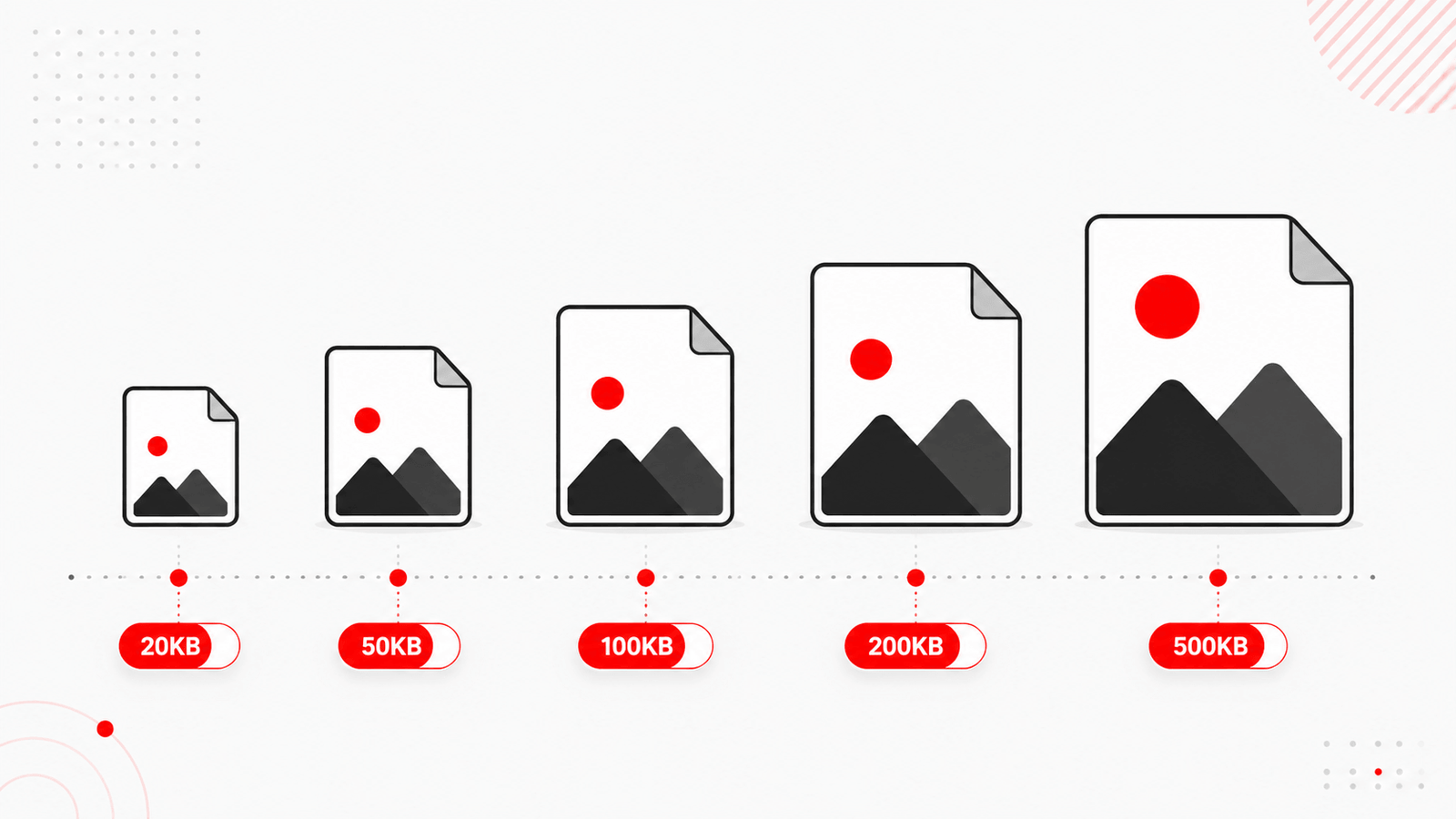
Compress Image to 20KB, 50KB, 100KB, 200KB & 500KB — Complete Guide
Different platforms, portals, and use cases demand different file size limits. This Image Compressor in KB handles every target precisely — from the smallest government form requirements to larger web publishing needs. Below is a complete breakdown of the most common compression targets and exactly where each one is needed.
Compress Image to 20KB
A 20KB limit is one of the most commonly enforced sizes on Indian government portals, competitive exam registration systems like SSC, UPSC, and railway recruitment boards, and state-level admission forms. Photographs and signature scans are almost always capped at 20KB on these platforms. To compress image to 20KB, use JPEG or WEBP format — these lossy formats achieve the smallest file sizes while preserving enough visual quality for identity verification purposes. Set your target to 20 in the KB input field and the bisection engine will deliver the closest possible result automatically.
Compress Image to 50KB
A 50KB limit appears across a wide range of use cases — job application portals, educational institution uploads, professional profile photos, and e-commerce seller onboarding platforms. When you need to compress image to 50KB, JPEG format at this size still retains good visual quality for most standard photographs. The tool's bisection algorithm finds the optimal quality setting that keeps the output at or below 50KB without unnecessarily degrading the image. This is one of the most commonly searched compression targets and the tool handles it with up to 99% accuracy.
Compress Image to 100KB
100KB is the most universal image size limit across the internet. Blog thumbnails, social media profile photos, product listings, news article images, and general website uploads all commonly require images at or under 100KB. To compress image to 100KB, JPEG and WEBP both produce excellent results — WEBP typically achieves better visual quality at the same file size, making it the recommended format for web use. This target gives the compressor enough room to maintain solid image clarity while still reducing file weight significantly from typical camera or smartphone photo sizes that run into several megabytes.
Compress Image to 200KB
200KB is the standard ceiling for high-quality web images, e-commerce product photos, and professional portfolio images. When you compress image to 200KB, there is typically enough room to maintain sharp detail, accurate colors, and clean edges — especially for product shots and editorial photographs. This target is also commonly required by marketplace platforms like Amazon, Flipkart seller portals, and travel booking sites for destination imagery. JPEG at 200KB produces near-print-quality output for most standard photography, while WEBP at 200KB can handle even larger original images with minimal visible quality loss.
Compress Image to 500KB
500KB is typically used for high-resolution web publishing, digital press kits, magazine-style editorial images, and real estate listing photos where visual quality is a priority and file size is a secondary concern. Compressing to 500KB while maintaining maximum quality is where this tool's Manual Quality Mode becomes especially useful — set the quality slider to 85–95% and monitor the output size in the live stats panel until it falls within your target range. For very large original files (5MB+), the bisection Target KB mode can also deliver accurate 500KB results automatically.
How to Reduce Image Size in KB Without Losing Quality
The most common concern when compressing images is losing visual quality in the process. The good news is that with the right approach, you can significantly reduce image size in KB while keeping the image looking clean, sharp, and professional. Here is how this tool achieves it:
Format selection is the single biggest factor in how much you can reduce image size in KB without visible quality loss. WEBP consistently produces 25–35% smaller files than JPEG at the same visual quality level. For photographs, always try WEBP first. For graphics with transparency, use PNG with resolution scaling. For maximum compatibility with older systems and email clients, use JPEG.
When you use a manual quality slider and guess a percentage, you often over-compress — going lower than necessary and losing quality that could have been preserved. The Target KB bisection algorithm finds the highest quality setting that still meets your size constraint. This means you get the best possible visual output for your required file size, rather than unnecessarily degrading the image.
A 4000x3000px photograph compressed to 100KB will always look worse than a 1920x1080px image compressed to 100KB, because the same file size budget is spread across far more pixels. If your original image is very high resolution and your target KB is small, consider resizing dimensions first using the Image Resizer Tool, then applying KB compression. This two-step approach preserves far more visual quality than compression alone.
Every time a JPEG is re-compressed, it loses additional quality because the lossy encoding is applied again to an already-lossy file. Always compress from the original source file — not from a previously compressed version. If you only have a compressed copy, WEBP output format will degrade less than re-compressing as JPEG.
Image Compressor Without Losing Quality — Is It Possible?
Technically, a true lossless image compressor without losing quality only applies to PNG format — which uses lossless encoding by default. However, PNG files compressed to very small KB targets must reduce resolution to hit the size limit, which does affect visual sharpness at small display sizes.
For JPEG and WEBP, some quality loss is mathematically unavoidable when file size is reduced. However, at targets of 100KB and above, the quality difference between the original and compressed output is often indistinguishable to the human eye — making this tool effectively an image compressor without losing quality for most practical use cases.
Compress Image Without Losing Quality — Format-by-Format Guide
Different image formats behave very differently under compression. Understanding which format to choose for which situation is the key to compressing images without visible quality loss.
JPEG uses lossy compression that discards pixel data not easily detected by the human eye. At targets of 80KB and above, JPEG images typically look excellent. Below 30KB, visible compression artifacts — blocky patterns and color banding — begin to appear. Use JPEG when compatibility across all platforms and email clients is required.
WEBP is Google's modern image format that delivers 25–35% better compression than JPEG at equivalent visual quality. It supports both lossy and lossless modes and handles transparency like PNG. For web use, WEBP is almost always the best choice when you need to compress image without losing quality. According to Google's official WebP documentation, the format is supported by all modern browsers and is widely recommended for web performance optimization.
PNG uses lossless compression — meaning no pixel data is discarded during encoding. This makes PNG the true lossless image compressor option. However, PNG files are inherently larger than JPEG or WEBP at the same visual content, so hitting very small KB targets requires resolution scaling. Best for icons, logos, screenshots, and images with transparent backgrounds.
GIF is limited to 256 colors and is primarily used for simple animations. BMP is an uncompressed raw format that produces very large files. Neither is recommended for general image compression — convert to JPEG or WEBP instead for significantly smaller file sizes at the same visual quality.
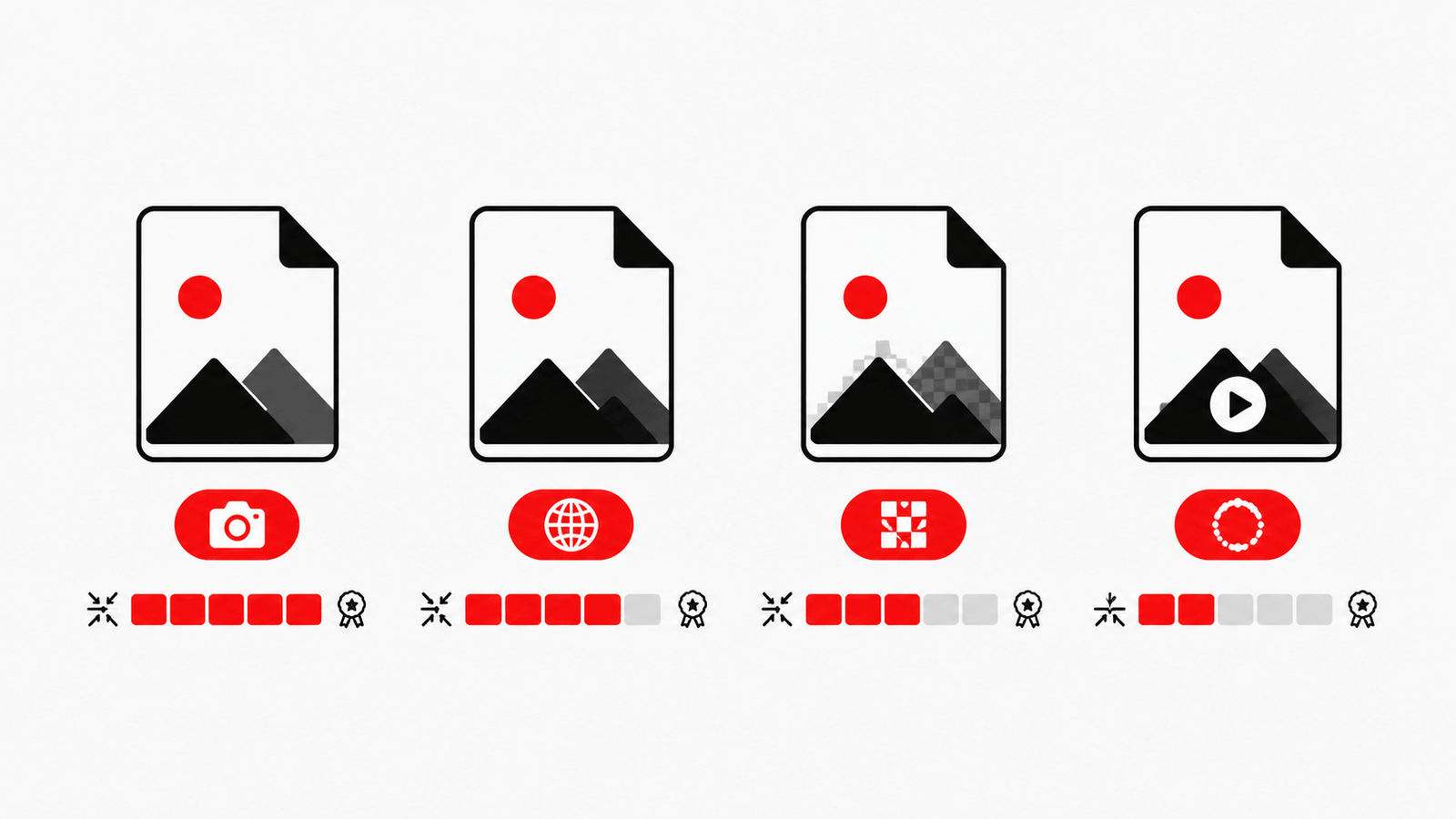
This tool supports input in all six formats and lets you convert output to JPEG, WEBP, or PNG — giving you full control over which format produces the smallest file at your required quality level.
Want to convert your image to WebP format before compressing? Use the free Image to WebP Converter — then apply exact KB compression here for the best possible quality-to-size ratio.
Set your target. Upload your image. Download your perfectly compressed file.
Whether you need to resize and compress image files for government portals, reduce photo size in KB for job applications, or compress image by KB for web performance — this Image Compressor in KB gives you the most precise, private, and efficient solution available online. No guesswork, no server uploads, no cost.
While you're here — resize dimensions with the Image Resizer, convert format with the WebP Converter, or explore more free tools at Onlinetoolix.