
How to Improve Page Speed for SEO
Practical, prioritized fixes for a faster site — because page speed is one of the few performance metrics Google measures directly.
Every second a page takes to load is a second a visitor spends deciding whether to wait or leave. Page speed sits at an unusual intersection in SEO — it’s simultaneously a confirmed ranking factor through Core Web Vitals and one of the biggest drivers of bounce rate, meaning slow pages get hit twice. Learning how to improve page speed for SEO mostly comes down to a short list of fixes, applied in the right order, rather than a mysterious technical overhaul.
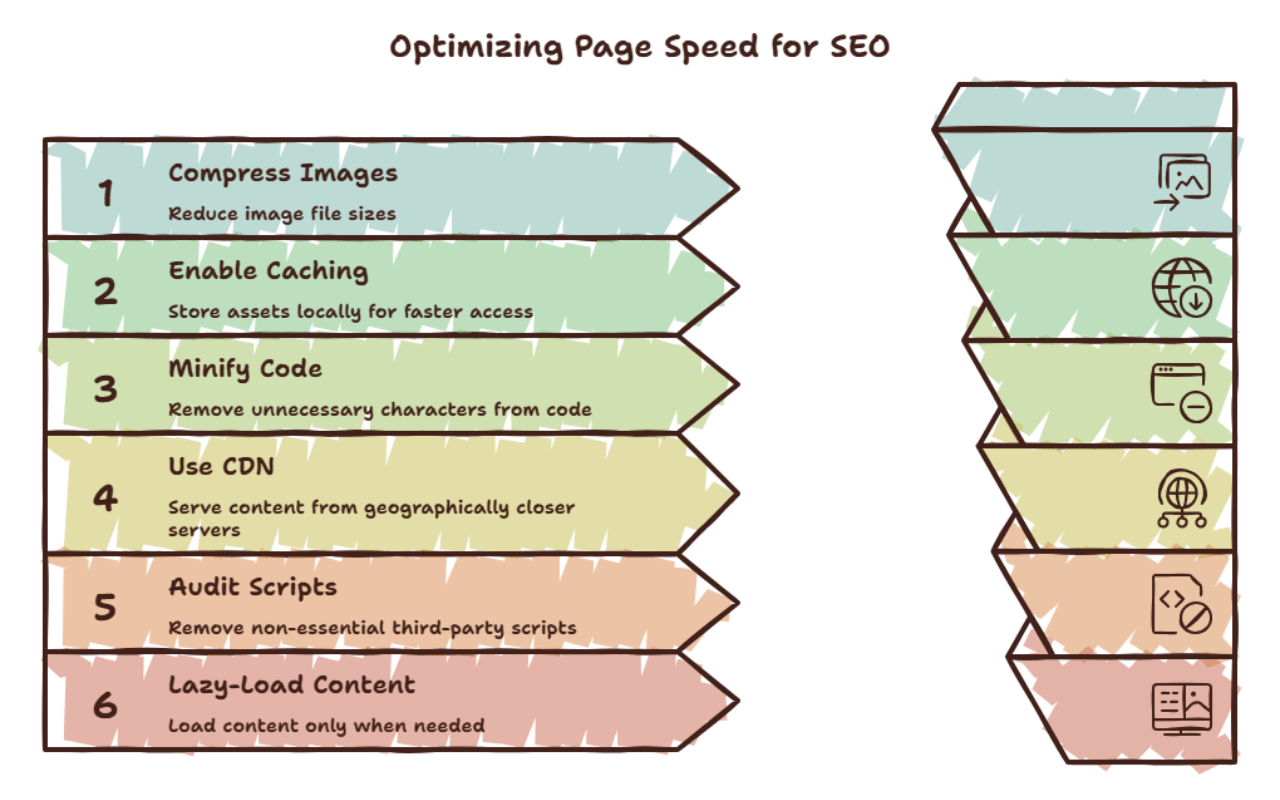
To improve page speed for SEO: compress and resize images, enable browser caching, minify CSS and JavaScript, use a content delivery network (CDN), reduce third-party scripts, choose fast, quality hosting, and lazy-load offscreen content. Measure results with Google PageSpeed Insights before and after each change so you know what’s actually moving the needle.
Why Page Speed Is a Ranking Factor
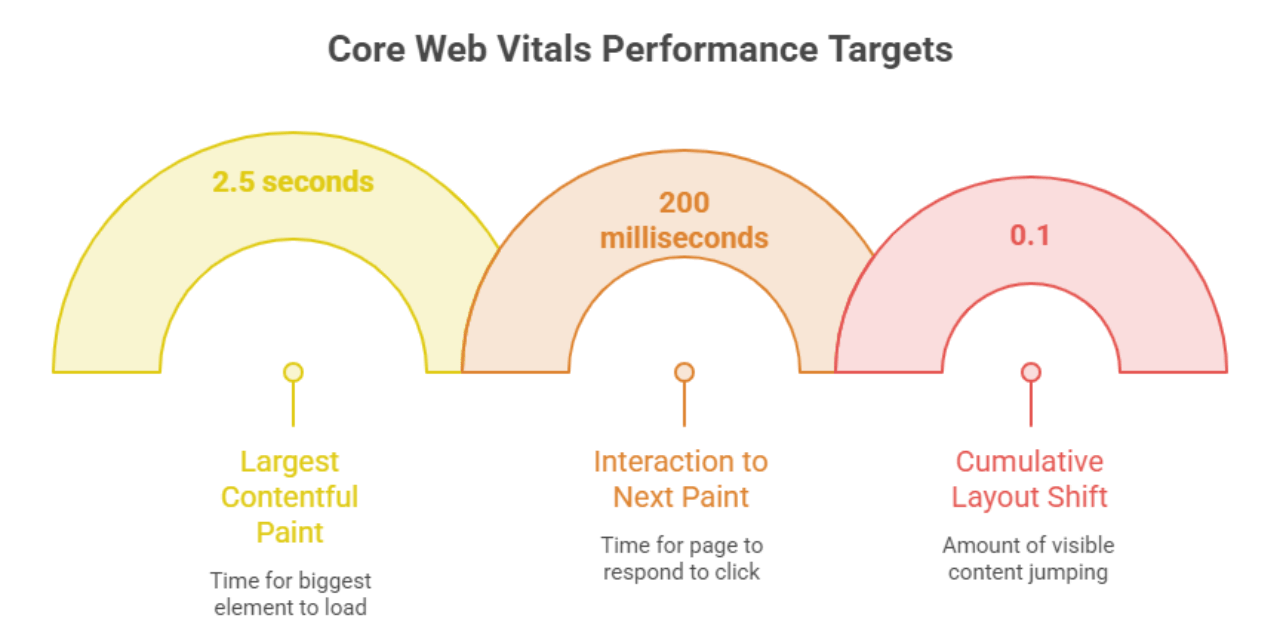
Google measures page speed through Core Web Vitals — a set of metrics covering loading performance, interactivity, and visual stability. According to Google’s own documentation on Core Web Vitals, these metrics are designed to reflect the real-world experience of loading and using a page, which is why they’re factored into how pages are ranked, alongside content relevance.
Beyond rankings, speed affects behavior directly. A slow page increases bounce rate before a visitor even sees your content, and it can quietly undermine conversions on product pages, sign-up forms, or anything requiring an action. Fixing speed is one of the few SEO tasks where the benefit is visible in both rankings and raw analytics.
How to Improve Page Speed for SEO — Step by Step
Work through these roughly in order — the first few typically deliver the biggest gains for the least effort.
Compress and Resize Every Image
Images are usually the single heaviest asset on a page. Run them through an image compressor and an image resizer before uploading, and convert older libraries to WebP with a WebP converter.
Enable Browser Caching
Caching lets returning visitors load static assets — CSS, JavaScript, images — from their own browser instead of re-downloading them, dramatically speeding up repeat visits.
Minify CSS, JavaScript, and HTML
Minification strips unnecessary whitespace, comments, and characters from your code files, shrinking their size without changing how they function.
Use a Content Delivery Network (CDN)
A CDN serves your site’s files from servers geographically closer to each visitor, cutting the physical distance data has to travel and reducing load time significantly for a global audience.
Audit Third-Party Scripts
Chat widgets, ad networks, and analytics trackers each add their own load time. Review what’s actually installed and remove anything no longer providing real value.
Lazy-Load Offscreen Content
Add loading="lazy" to images and embeds below the fold so the browser only loads them as a visitor scrolls near them, speeding up the initial render.
Choose Fast, Reliable Hosting
No amount of front-end optimization fully compensates for slow, overloaded hosting. If server response time is consistently high, that’s often the real bottleneck.
Reduce Redirect Chains
Every redirect adds a round trip before the final page loads. Audit old URLs and point redirects directly to their final destination instead of chaining through multiple hops.
Page Speed Fixes Specific to WordPress
WordPress powers a huge share of the web, and it comes with its own set of speed quirks — mostly caused by plugins, themes, and database bloat rather than WordPress itself. These fixes are worth doing in addition to the general steps above.
Install a Proper Caching Plugin
A caching plugin (such as WP Rocket, W3 Total Cache, or LiteSpeed Cache on compatible hosting) generates static HTML versions of your pages, avoiding a full PHP and database query on every single visit.
Audit and Reduce Plugins
Every active plugin adds some amount of load, even when idle. Deactivate and delete anything not genuinely in use — a common cause of WordPress sites slowing down gradually over time.
Choose a Lightweight Theme
Heavy, feature-packed themes often load unused CSS and JavaScript on every page. A lean theme (or a well-optimized page builder setup) gives you a faster baseline before any other optimization.
Optimize the Database
Post revisions, spam comments, and expired transients accumulate in the database over time. Cleaning these periodically — many caching plugins include this feature — keeps queries fast.
Keep PHP Updated
Each major PHP version has brought meaningful performance improvements. Confirm with your host that you’re running a current, supported PHP version rather than an outdated default.
Use a WordPress-Compatible CDN
Most major CDNs (Cloudflare, Bunny CDN, and others) integrate directly with WordPress through a plugin or DNS-level setup, requiring little manual configuration once connected.
Compress Images Before the Media Library, Not After
Auto-optimization plugins help, but compressing with an image compressor before uploading avoids storing an oversized original alongside the optimized version, saving both load time and storage.
Avoid Stacking Too Many Optimization Plugins
Running multiple caching, minification, or image-optimization plugins together can conflict and sometimes slow a site down instead of speeding it up. Pick one solid plugin per function rather than layering several that overlap.
Page Speed Fixes Specific to Shopify
Shopify already handles a lot of infrastructure — hosting, CDN, and server response time are managed for you — so most Shopify speed problems come from theme choice, apps, and custom code layered on top rather than the platform itself.
Audit and Remove Unused Apps
Every installed app can inject its own scripts, even ones you’ve stopped using or disabled in settings. Fully uninstall anything not actively needed rather than just turning it off.
Choose a Lightweight, Well-Coded Theme
Free Shopify themes like Dawn are built with performance as a priority. Heavily customized or older premium themes often carry unused CSS and JavaScript that quietly slows every page down.
Compress Product Images Before Upload
Product photography files are often exported at full resolution. Run them through an image compressor and resize to your actual display dimensions with an image resizer before adding them to a product listing.
Limit Third-Party Tracking Scripts
Marketing pixels, live chat widgets, and review-app scripts each add render-blocking weight. Keep only what’s genuinely earning its keep and check each one’s actual impact using Shopify’s theme inspector or PageSpeed Insights.
Reduce Sections and Blocks on Key Templates
Drag-and-drop theme editors make it easy to stack sections on the homepage or product page. Each one adds markup and sometimes its own JavaScript — trim to what’s actually driving conversions.
Use Native Lazy Loading for Product Images
Modern Shopify themes lazy-load images by default, but if you’re on an older or heavily customized theme, confirm loading="lazy" is actually applied to below-the-fold product grids and collection pages.
Minimize Custom Liquid and JavaScript
Custom Liquid snippets and JavaScript added directly to theme files can bypass Shopify’s own performance optimizations. Keep custom code lean, and remove anything left over from apps that were later uninstalled.
Check Speed Per Template, Not Just the Homepage
Product pages, collection pages, and cart pages often load very differently from the homepage, especially once apps and custom sections are added. Test each key template separately in PageSpeed Insights rather than assuming one score represents the whole store.
The Three Core Web Vitals, Explained Simply
Common Page Speed Mistakes
Measure Before and After
Run your page through Google PageSpeed Insights before making changes, note the specific issues it flags, fix those first, then re-test. Chasing an abstract score without checking real flagged issues wastes effort on the wrong fixes.
Frequently Asked Questions
What’s a good page speed for SEO?
Does page speed matter more than content quality?
What’s the single biggest speed fix for most sites?
Should I test speed on mobile or desktop?
How often should I check my page speed?
What’s the fastest way to speed up a WordPress site?
Why is my Shopify store slow even though Shopify hosts it?
Final Thoughts
Improving page speed rarely requires a full technical overhaul. Compress your images first, add caching and a CDN, trim unnecessary scripts, and measure the actual flagged issues rather than chasing an abstract score. These fixes compound — a faster site keeps more visitors around long enough to see the content you worked hard to write in the first place.