
How to Create a Location Tag on Instagram
Tagging an existing spot takes seconds. Creating a brand new one — for a business, event, or personal space — takes a short detour through Facebook. Here’s the full process.
Search for your new café, pop-up event, or home studio on Instagram and it often simply doesn’t exist as a taggable place — which confuses a lot of people into thinking location tags can only be created by Instagram itself. They can’t. Learning how to create a location tag on Instagram means understanding one specific workaround: Instagram’s location database is powered by Facebook, so any brand-new location has to be created there first before it becomes taggable back on Instagram.
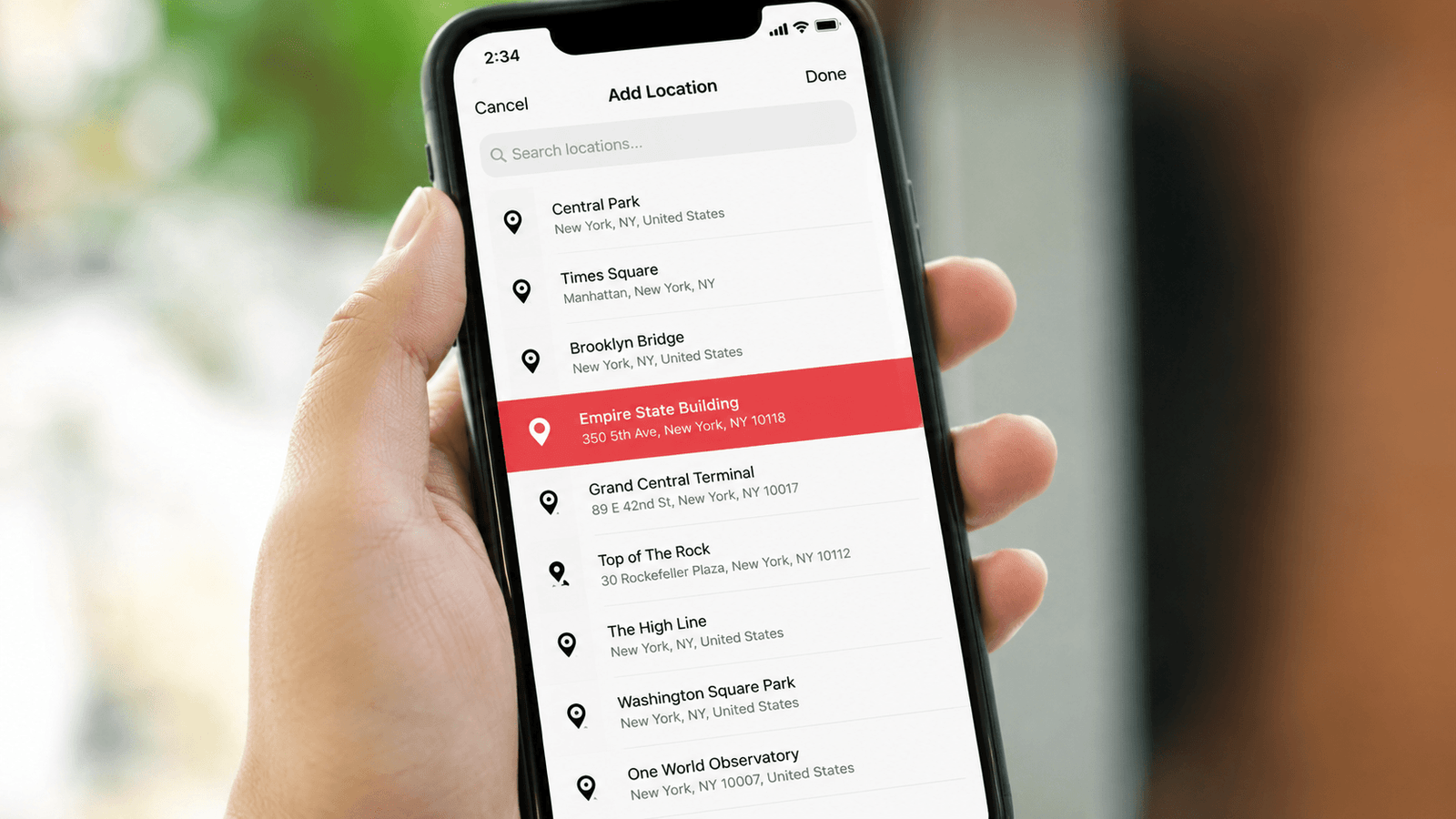
To tag an existing place, just search for it on the share screen. To learn how to create a location tag on Instagram from scratch, open the Facebook app, tap “Check In,” search the place name, select “Add a new place,” fill in the address, position the map pin, and save — it syncs to Instagram shortly after.
Why Location Tags Are Worth Setting Up Properly
A location tag does more than note where a photo was taken — it puts a post inside a discoverable location feed that anyone can browse, independent of whether they already follow the account. For local businesses specifically, this is a genuine discovery channel: someone searching a neighborhood or venue name on Instagram can land directly on tagged posts, including ones from accounts they’ve never encountered before.
A properly set up, consistently used location tag also signals legitimacy. An account tied to a real, verifiable place reads as more trustworthy than one with no location presence at all — which matters both to potential customers browsing and to how confidently people engage with tagged content.
This applies beyond formal businesses too. A recurring event series, a pop-up, or even a home studio benefits from a consistent, findable location tag — it gives a scattered set of posts across different accounts a single, browsable home.
Business Use vs Personal Use
The technical process for creating a location is identical either way, but what’s worth prioritizing differs depending on the purpose.
How to Tag an Existing Location
If the place you want already exists in Instagram’s database, this is the fast path — no Facebook detour needed.
Start a New Post, Reel, or Story
Select your photo or video as usual and proceed to the editing or caption screen where location options appear.
Tap “Add Location”
For feed posts and Reels, this appears as a dedicated option on the share screen. For Stories, tap the sticker icon and select the location sticker instead.
Search for the Place by Name
Type the venue or area name. Instagram surfaces nearby matches based on your device’s current or recent location data.
Select the Correct Result and Share
Confirm you’ve picked the right listing — duplicate or near-identical location names are common, so double-check the address shown before finalizing.
How to Create a Location Tag on Instagram (Brand New Locations)
If your search comes up empty, the location genuinely doesn’t exist yet in Meta’s system. Here’s the actual process, done entirely inside the Facebook app.
Open the Facebook App and Start a Post
Tap “What’s on your mind?” from your Facebook home screen — you don’t need to actually publish anything, this just opens the composer.
Select “Check In”
Among the composer options (Photo/Video, Tag People, and so on), tap the location pin icon labeled “Check In.”
Search for Your Place Name
Type the exact name you want the location to be called. If it truly doesn’t exist, nothing relevant will appear in the results.
Tap “Add a New Place”
This option sits at the very bottom of the search results list. If it’s missing entirely, location services for Facebook are likely turned off in your phone’s settings — enable them and try again.
Fill In the Place Details
Enter the place name, address, and city. Accuracy matters here — this becomes the permanent public listing others will see and tag.
Position the Pin on the Map
Drag the marker to the exact spot. An inaccurate pin placement is one of the most common reasons a new location gets flagged or corrected later.
Save the Custom Place
Once saved, you don’t need to actually publish the Facebook post — you can close out of the composer entirely.
Switch Back to Instagram and Tag It
The new location typically syncs to Instagram’s system within a few minutes to a few hours. Search for it the same way you’d tag any existing place.
Generate Consistent Location Tags →
The Real Impact of Getting This Right
This isn’t just a cosmetic detail. According to recent analysis on Instagram location tagging, posts with a location tag see meaningfully higher engagement than untagged posts, since the location feed exposes content to people actively browsing that specific area or venue rather than relying purely on the algorithm’s own distribution. That’s a meaningfully different discovery path than likes, comments, or hashtags alone can offer.
For a business specifically, a dedicated custom location — rather than a generic city-level tag — means every customer who tags your exact spot contributes to a growing, browsable feed of user-generated content tied directly to your business. That feed becomes a form of social proof future customers can browse before ever visiting.
Location Tags Are One Piece of a Larger Discovery Strategy
Consistent location tagging pairs directly with how Instagram’s search bar works — see Instagram SEO: How to Rank Your Profile in Search for how location signals fit into the broader picture of getting found.
Mistakes to Avoid When You Create a Location Tag on Instagram
Frequently Asked Questions
Can I create a location tag directly inside the Instagram app?
How long does it take for a new location to appear on Instagram?
Do I need a Facebook account to create an Instagram location tag?
Can I delete or edit a location tag once it’s created?
Can a personal, non-business location be created the same way?
Why can’t I find the “Add a new place” option?
Should I create a separate location for each business branch?
Final Thoughts
Learning how to create a location tag on Instagram isn’t hidden or complicated once you know the actual path — it just isn’t where most people expect to find it. Tag existing places directly in the app in seconds, and for anything new, take the short detour through Facebook’s Check In feature, fill in accurate details, and give it time to sync.
Once it exists, keep using it consistently, since a scattered, inconsistent location presence undermines exactly the discovery benefit the tag was meant to provide in the first place. A single accurate, well-maintained location tag does more for local discovery over time than several inconsistent, half-finished attempts ever will.