
Base64 to Image Converter
Decode Base64 strings into images instantly, or encode your images to Base64 strings. 100% secure, private, and client-side.
Base64 to Image Converter — Decode & Encode Base64 Images Instantly
You received a long string of characters from an API response, a database export, or a colleague's code snippet. It is supposed to be an image. But you cannot see it, inspect it, or verify it — because it is encoded as Base64.
The Base64 to Image Converter solves this instantly. Paste any Base64 string and get a live visual preview of the decoded image — along with its format, file size, pixel dimensions, and aspect ratio — in seconds. It also works in reverse: upload any image and get the complete Base64 Data URI string immediately.
Everything runs entirely inside your browser. Your data never leaves your device.
This free tool is part of the Onlinetoolix suite of developer and web tools. No account required, no server uploads, no cost.
What Is a Base64 to Image Converter?
A Base64 to Image Converter is a free online tool that instantly decodes Base64-encoded strings back into their original image format — and also works in reverse, converting any uploaded image into a Base64 string. Whether you are a web developer debugging encoded image data, a designer handling embedded assets, or someone who received a long string of text that is supposed to be an image, this tool handles both directions in seconds.
Simply paste your Base64 code into the input field and the converter immediately renders a live visual preview of the decoded image along with key metadata including file format, file size, pixel dimensions, and aspect ratio.
Quick Definition: Base64 is a binary-to-text encoding scheme that represents binary data — like image files — as a string of ASCII characters. A Base64 to Image Converter decodes that string back into a visible image, or encodes a visible image back into that string.
Why Developers and Designers Use Base64 Encoding
Standard image files — PNG, JPEG, WEBP, GIF, SVG — are binary data. Web technologies like HTML, CSS, and JSON are text-based. When you need to embed an image directly inside a text-based format without referencing an external file URL, you need a way to represent that binary data as plain text. Base64 encoding is the solution.
A Base64-encoded image looks something like this:
data:image/png;base64,iVBORw0KGgoAAAANSUhEUgAA...
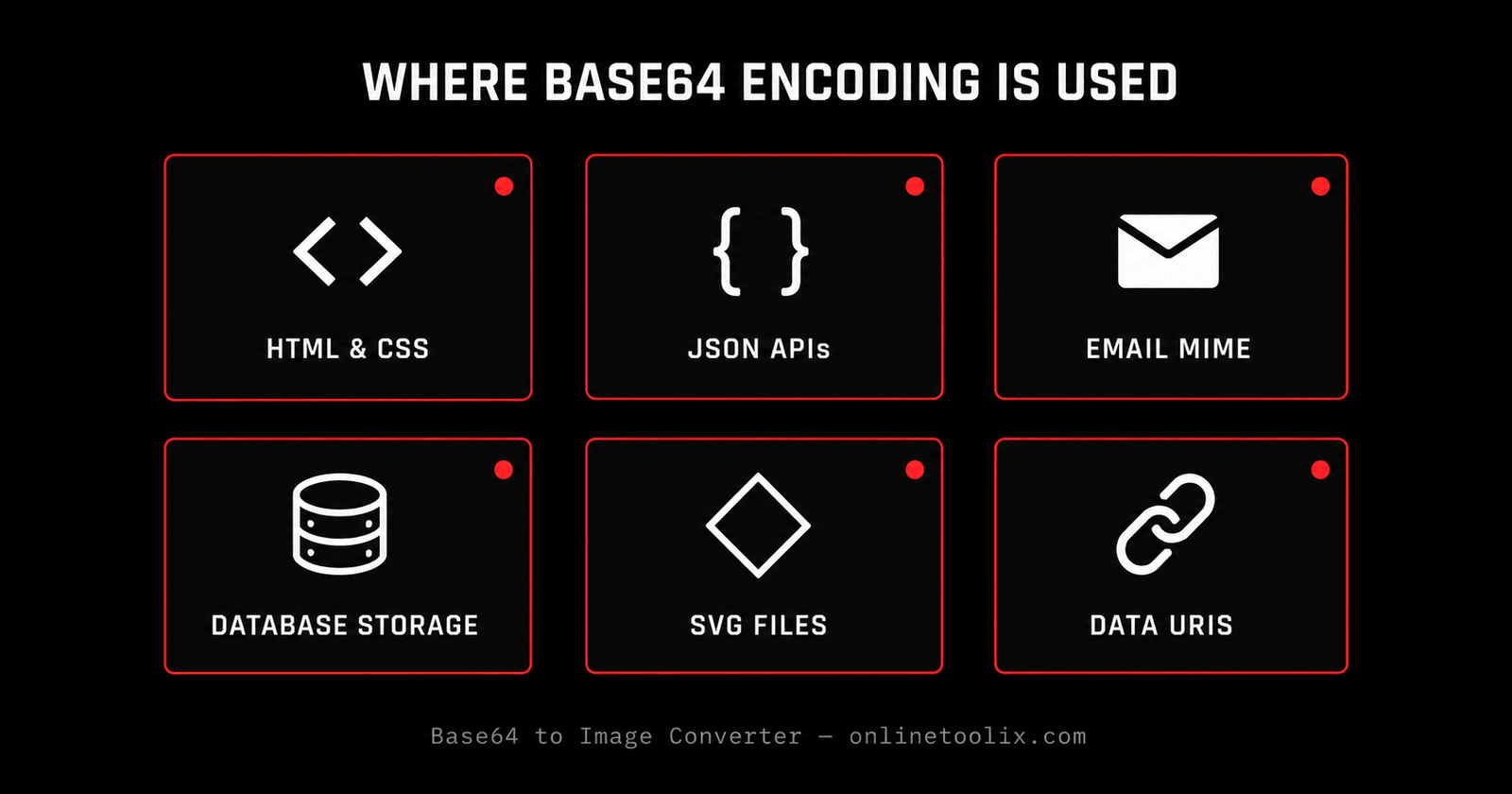
That long string is not random gibberish — it is your image, translated into a text format that browsers, APIs, and programming languages can handle natively. Base64 is used extensively across:
HTML and CSS — embedding small icons or background images directly in code without separate HTTP requests
JSON APIs — sending images as part of JSON payloads between servers and clients where binary data is not supported
Email attachments — MIME encoding uses Base64 to transmit binary files over text-based protocols
SVG files — embedding raster images inside vector files
Database storage — storing image thumbnails directly in database fields as text
Data URIs — referencing images in src attributes without external file dependencies
The problem is that when you receive a Base64 string — from an API response, a database export, a code snippet, or a colleague — you cannot visually inspect it. You cannot tell if it is a PNG or a JPEG. You cannot see what the image looks like. You cannot check its dimensions. That is exactly where a Base64 to Image Converter becomes essential.
Need to compress your image before encoding it? Use the Image Compressor Tool — Base64 strings grow approximately 33% larger than the original file, so a smaller source image means a significantly shorter string.
How This Base64 to Image Converter Works
This tool operates in two distinct modes, making it a complete two-way Base64 image utility:
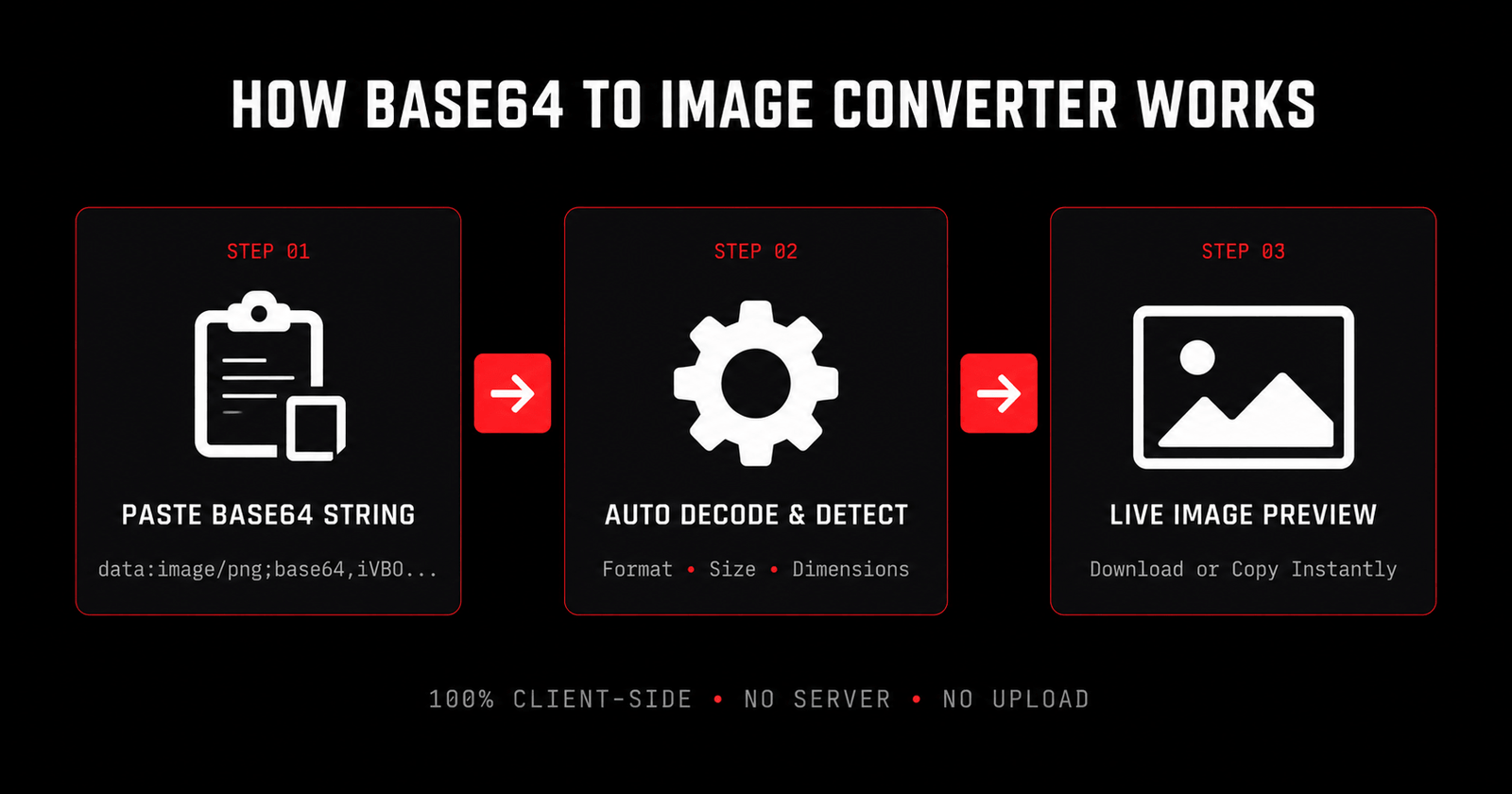
Paste any Base64 string — full Data URI with prefix or raw string without — and the tool instantly decodes it into a visual image preview with format, file size, pixel dimensions, and aspect ratio. Download the decoded image or copy it to clipboard in one click.
Upload any image file — PNG, JPEG, WEBP, GIF, SVG, BMP, or ICO — by browsing or drag-and-drop. The tool instantly generates the complete Base64 Data URI string. Copy it to clipboard or download it as a TXT file for use in your codebase.
Both modes update in real time with no page reloads, no processing delays, and no server communication. You can also upload a TXT file containing your Base64 code if the string is too long to paste manually — the tool reads the file and processes it immediately.
For a deeper understanding of how Base64 encoding works at the specification level, see the MDN Web Docs guide to Base64 — a comprehensive reference maintained by Mozilla.
Key Features of This Base64 to Image Converter
Most tools handle only one direction. This converter handles both — decode Base64 to image and encode image to Base64 — in the same interface with a simple toggle switch.
Every single operation — decoding, encoding, rendering, downloading — happens locally inside your browser. No data is uploaded to any server. No image is transmitted over the internet. Completely safe for sensitive, confidential, or proprietary image data.
The tool reads the MIME type from the Data URI prefix and automatically identifies whether your encoded image is a PNG, JPEG, WEBP, GIF, or other supported format. No manual selection needed.
Rather than just outputting another text string, the converter renders your decoded image visually in real time. The checkered transparency background makes it easy to inspect images with alpha channels or transparent areas.
Beyond just showing the image, the tool calculates and displays four key metadata fields — format, file size, pixel dimensions, and aspect ratio — giving you the information you need without opening any external software.
Encoding an image to Base64 is as simple as dragging your file onto the upload area. No file browser navigation required.
Long Base64 strings can exceed what a textarea comfortably handles. Upload a TXT file containing your Base64 code and the tool processes it automatically.
After decoding, download your image file directly or copy it to your clipboard. After encoding, copy the Base64 string or download it as a TXT file for storage or sharing.
Who Needs a Base64 to Image Converter?
The use cases for this tool span several different professional and personal contexts:
Inspecting Base64 image data embedded in CSS files, HTML templates, or JavaScript code. Verifying encoded images are valid before deploying. Converting small icons to Base64 for performance optimisation.
Debugging API responses that return image data as Base64 strings. Validating that image encoding and decoding pipelines are functioning correctly. Testing image upload endpoints that accept Base64 payloads.
Converting design assets to Base64 for embedding in email templates or HTML prototypes where external file references are not practical.
Extracting image data from database exports or JSON files where images were stored as Base64 text fields.
Decoding Base64-encoded email attachments or inline images for inspection and debugging.
Testing and verifying image encoding in web applications, mobile apps, and API integrations.
Working with images in multiple formats? Use the Image to WebP Converter to convert your images to the modern WebP format before encoding — WebP files are significantly smaller, producing shorter Base64 strings.
Base64 vs Standard Image Files — When to Use Each
Understanding when to use Base64 encoding versus standard image file references is important for making good technical decisions.
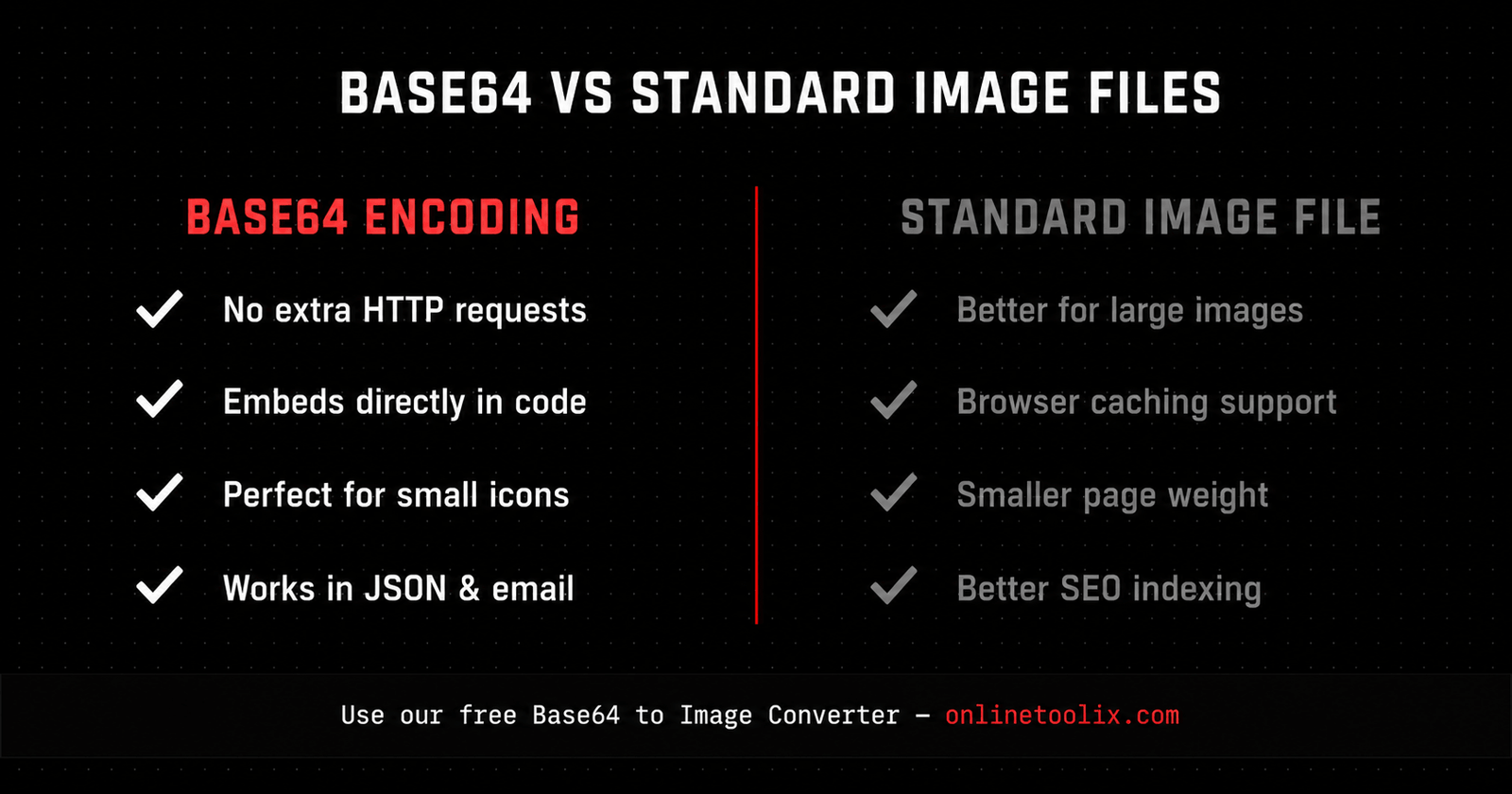
Use Base64 encoding when:
You need to embed images directly in HTML or CSS to eliminate additional HTTP requests for small icons and UI elements. You are building email templates where external image hosting is unreliable or blocked. You are transmitting image data through JSON APIs where binary data is not supported. You need to store image thumbnails directly in a database as text.
Use standard image file references when:
Images are large — Base64 strings are approximately 33% larger than the original binary file, so large images encoded in Base64 significantly increase page weight. Images are reused across multiple pages — a referenced file is cached by the browser; a Base64 string is re-parsed every time. SEO matters — search engines can index and crawl standard image files more effectively than Base64-embedded images. You need to manage images independently from code.
Need to resize your image before encoding? Use the Image Resizer Tool to set exact pixel dimensions, then encode the resized file for a leaner Base64 output.
Frequently Asked Questions
data:image/png;base64, prefix) and raw Base64 strings without any prefix. For raw strings, PNG is assumed as the default format.Paste, decode, and see your image instantly.
No uploads to external servers. No waiting. No cost. Just paste your Base64 string or drop your image file — and the converter does the rest in real time.
While you're here — compress your images with the Image Compressor, resize them with the Image Resizer, or convert to modern format with the WebP Converter — all free on Onlinetoolix.